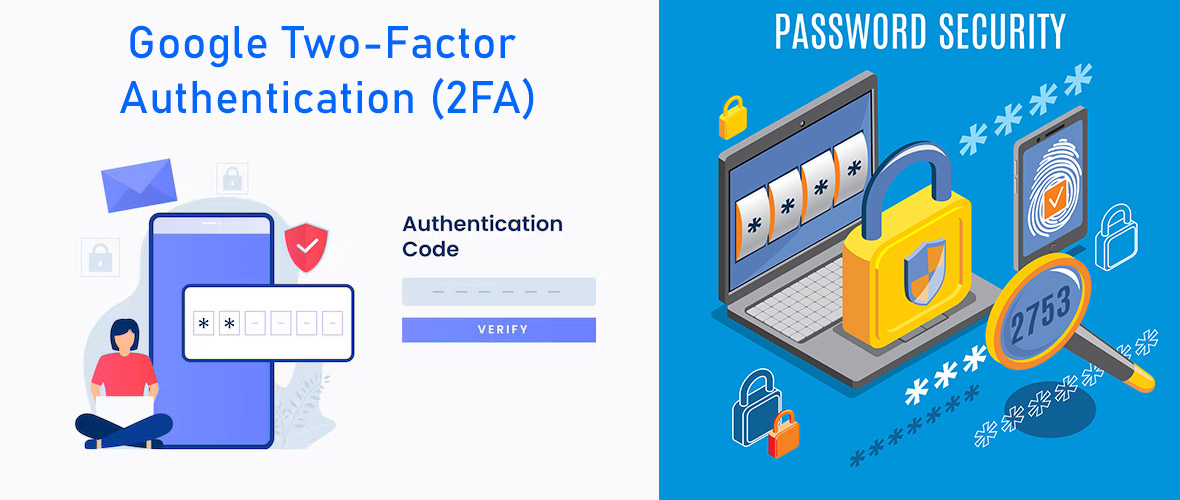
If you've ever logged into Gmail, GitHub, or your bank's app and had to punch in a 6-digit code from your phone right after your password - that's Two-Factor Authentication, or 2FA. It's one of those features that sounds complicated to build, but once you understand the logic behind it, it's actually a pretty small piece of code sitting on top of a well-known algorithm.
In this tutorial, we're going to add Google Authenticator-style 2FA to a PHP login system, using plain PHP and MySQL - no frameworks, no Composer dependencies that won't run on shared hosting. By the end, your users will be able to scan a QR code with the Google Authenticator app and use a rotating 6-digit code as a second login step.
How TOTP Actually Works
Google Authenticator doesn't talk to Google's servers when generating your code - that's the part most people get wrong. It uses something called TOTP (Time-based One-Time Password), defined in RFC 6238. Here's the short version of what happens:
- When you enable 2FA, your server generates a random secret key and shares it with your phone (via QR code).
- Both your server and your phone now know this secret.
- Every 30 seconds, both sides independently combine the secret with the current Unix timestamp and run it through the HMAC-SHA1 algorithm.
- The result is truncated down to a 6-digit number.
- Since both sides have the same secret and roughly the same clock, they arrive at the same 6 digits - without ever needing to talk to each other.
Why this matters: Because it's fully offline, TOTP works even without internet on your phone. It's just math - same input (secret + time window) always produces the same output.
Requirements
Before we start, make sure you have:
- PHP 8.0 or higher
- MySQL database with an existing
registertable and login system - Composer (only to install the TOTP library - the library itself has zero external dependencies, so it'll still run fine on shared hosting like Hostinger)
- The Google Authenticator app installed on your phone (Android/iOS) - or Authy/Microsoft Authenticator, they all work the same way
Step 1: Install the TOTP Library
Rather than writing the HMAC-SHA1 and Base32 logic from scratch (which is fiddly and easy to get subtly wrong), we'll use a small, well-tested library called spomky-labs/otphp. It has no heavy dependencies and works perfectly on shared hosting once installed.
composer require spomky-labs/otphpIf your host doesn't allow Composer access via SSH, you can run this locally and just upload the generated vendor/ folder along with your project files.
Step 2: Add 2FA Columns to Your Users Table
We need a place to store each user's secret key and whether 2FA is currently active for them.
ALTER TABLE users
ADD COLUMN two_fa_secret VARCHAR(64) DEFAULT NULL,
ADD COLUMN two_fa_enabled TINYINT(1) DEFAULT 0;
That's it on the database side - one secret per user, and a flag to know whether they've turned it on.
Step 3: Generate the Secret Key & QR Code
This is the "setup" page a user visits when they choose to enable 2FA from their account settings. We generate a fresh secret, save it (but don't activate it yet), and show them a QR code to scan.
<?php
// 2fa-setup.php
require 'vendor/autoload.php';
require 'db-connect.php'; // your existing PDO connection
session_start();

use OTPHP\TOTP;

if (!isset($_SESSION['user_id'])) {
    header('Location: login.php');
    exit;
}

$userId = $_SESSION['user_id'];

// Get user's email/username for labeling the QR code
$stmt = $pdo->prepare("SELECT username, email, two_fa_secret FROM users WHERE id = ?");
$stmt->execute([$userId]);
$user = $stmt->fetch(PDO::FETCH_ASSOC);

// Generate a new secret only if one doesn't already exist
if (empty($user['two_fa_secret'])) {
    $totp = TOTP::generate();
    $totp->setLabel($user['email']);
    $totp->setIssuer('YourAppName');

    $secret = $totp->getSecret();

    $update = $pdo->prepare("UPDATE users SET two_fa_secret = ? WHERE id = ?");
    $update->execute([$secret, $userId]);
} else {
    $totp = TOTP::createFromSecret($user['two_fa_secret']);
    $totp->setLabel($user['email']);
    $totp->setIssuer('YourAppName');
}

// This is the otpauth:// URI that the QR code will encode
$qrCodeUri = $totp->getProvisioningUri();
Step 4: Verify the Code & Activate 2FA
Now we check the code the user typed in against what the secret should produce right now. If it matches, we activate 2FA on their account.
<?php
// 2fa-verify-setup.php
require 'vendor/autoload.php';
require 'db-connect.php';
session_start();

use OTPHP\TOTP;

if (!isset($_SESSION['user_id'])) {
    header('Location: login.php');
    exit;
}

$userId = $_SESSION['user_id'];
$enteredCode = $_POST['otp_code'] ?? '';

$stmt = $pdo->prepare("SELECT two_fa_secret FROM users WHERE id = ?");
$stmt->execute([$userId]);
$secret = $stmt->fetchColumn();

$totp = TOTP::createFromSecret($secret);

// verify() checks the code against the current time window
// (it also allows a small drift window automatically)
if ($totp->verify($enteredCode)) {
    $update = $pdo->prepare("UPDATE users SET two_fa_enabled = 1 WHERE id = ?");
    $update->execute([$userId]);

    echo "✅ Two-Factor Authentication has been enabled successfully!";
} else {
    echo "❌ Invalid code. Please try again - make sure your phone's time is set to automatic.";
}Step 5: Ask for the Code During Login
Now the real-world flow: a user already enabled 2FA earlier, and they're logging in today. After their password is verified correctly, instead of logging them straight in, we redirect them to a second screen asking for the OTP code.
<?php
// login.php (relevant part, after password check passes)

if (password_verify($_POST['password'], $user['password_hash'])) {

    if ($user['two_fa_enabled']) {
        // Don't fully log in yet - store a "pending" session
        $_SESSION['pending_2fa_user_id'] = $user['id'];
        header('Location: 2fa-login-verify.php');
        exit;
    }

    // No 2FA - log in normally
    $_SESSION['user_id'] = $user['id'];
    header('Location: dashboard.php');
    exit;
}
<?php
// 2fa-login-verify.php
require 'vendor/autoload.php';
require 'db-connect.php';
session_start();
use OTPHP\TOTP;
if (!isset($_SESSION['pending_2fa_user_id'])) {
header('Location: login.php');
exit;
}
if ($_SERVER['REQUEST_METHOD'] === 'POST') {
$userId = $_SESSION['pending_2fa_user_id'];
$enteredCode = $_POST['otp_code'] ?? '';
$stmt = $pdo->prepare("SELECT two_fa_secret FROM users WHERE id = ?");
$stmt->execute([$userId]);
$secret = $stmt->fetchColumn();
$totp = TOTP::createFromSecret($secret);
if ($totp->verify($enteredCode)) {
// Success - promote pending session to full login
$_SESSION['user_id'] = $userId;
unset($_SESSION['pending_2fa_user_id']);
header('Location: dashboard.php');
exit;
} else {
$error = "Invalid code. Please try again.";
}
}
?>
Testing It Out
Here's the full loop to test on your local setup:
- Log in normally, navigate to
2fa-setup.php - Open Google Authenticator on your phone, tap the "+" icon, choose "Scan a QR code"
- Scan the QR code shown on screen
- Type the 6-digit code your phone shows into the confirmation form
- Log out, then log back in with your password - you should now be redirected to the OTP verification screen
- Enter the current code from your phone - you're in
Security Tips Worth Following
- Never log or display the secret after setup - once the user has scanned it, treat it like a password.
- Add a "remember this device for 30 days" option using a signed cookie, so users aren't asked for a code on every single login from the same browser.
- Provide backup codes - generate 8-10 single-use codes at setup time so users aren't locked out if they lose their phone.
- Rate-limit the OTP verification endpoint - a 6-digit code has only a million combinations, so without rate limiting it's brute-forceable.
- Store the secret encrypted at rest if possible, not just in plain
VARCHAR- even though it's already a layer of defense, defense-in-depth matters.
Wrapping Up
And that's a complete, working Google Authenticator-based 2FA system in plain PHP - no heavy frameworks, just one lightweight library handling the cryptographic heavy lifting while you control the entire user flow. The same TOTP class powers setup, verification, and login checks, so once you understand these five steps, you can adapt this into any existing login system in an afternoon.
If you're building this into a larger project - like an admin panel or membership site - consider pairing it with email-based magic links as a fallback for users who lose access to their authenticator app entirely.
Bookmark this page or follow a2zwebhelp.com on social media to be notified when Version 2.0 with Social Login is published!
PHP Tutorial Series
Get the Full Source Code
Download the complete PHP Login System with Google Two-Factor Authentication - Bootstrap 5, PHP 8+, MySQL, PHPMailer. No account required.